Your Desktop Music Studio, Powered by AI
SingMeASongAI is a desktop music studio that uses an AI engine to generate and transform music from simple descriptions. Whether you start with one sentence or take full control with prompt and lyrics, you get a complete workflow: generate, edit, and AI-assisted drafting—all local-first and configurable.
Download Now!
Get the Sing Me A Song AI installer for Windows and start your AI music studio.
Download Sing Me A Song AI (Windows installer)
Key Features
Generate music from text
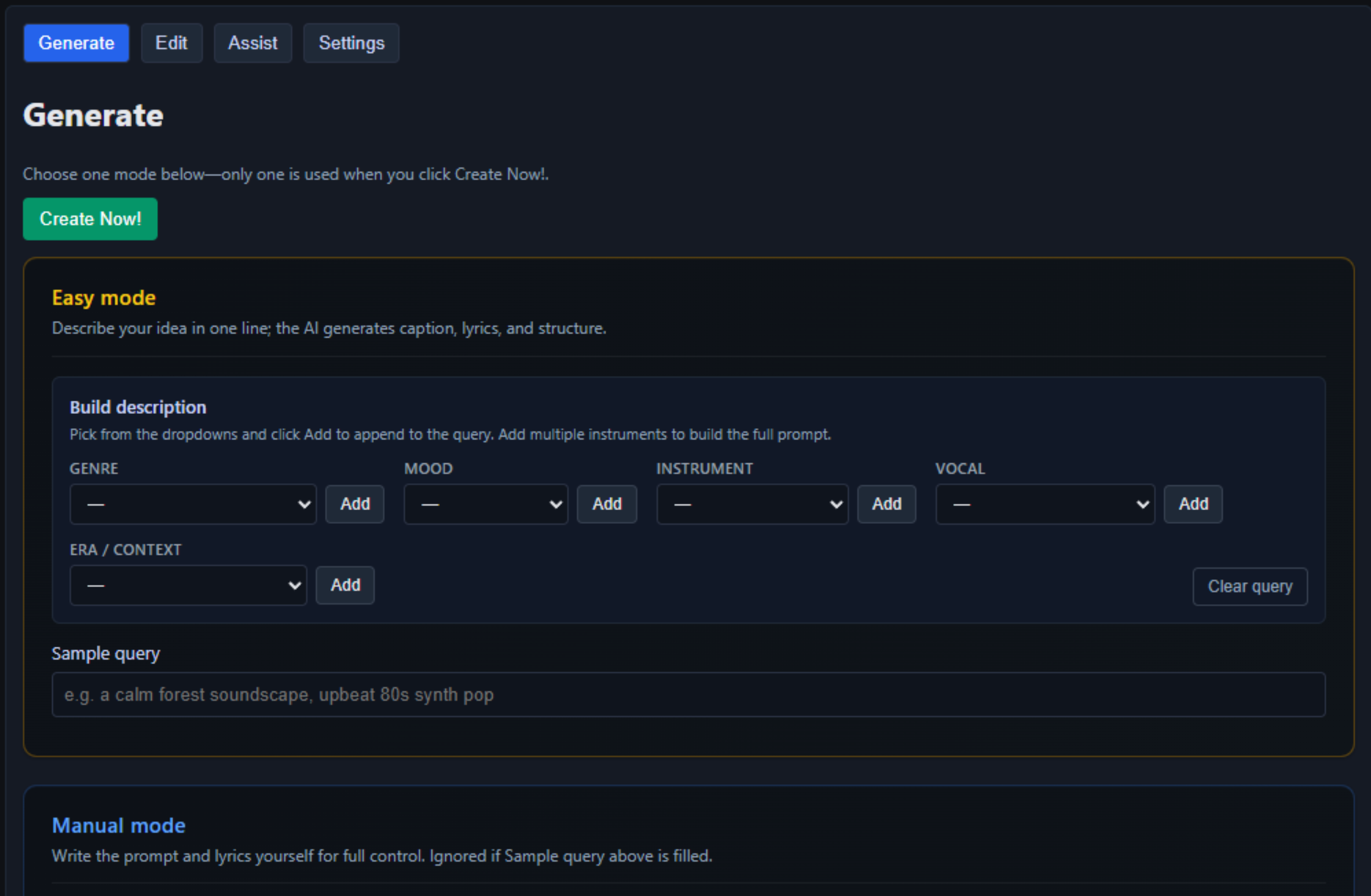
Describe your idea in one line (Easy mode) or control every detail with prompt and lyrics (Manual mode).
Edit and transform audio
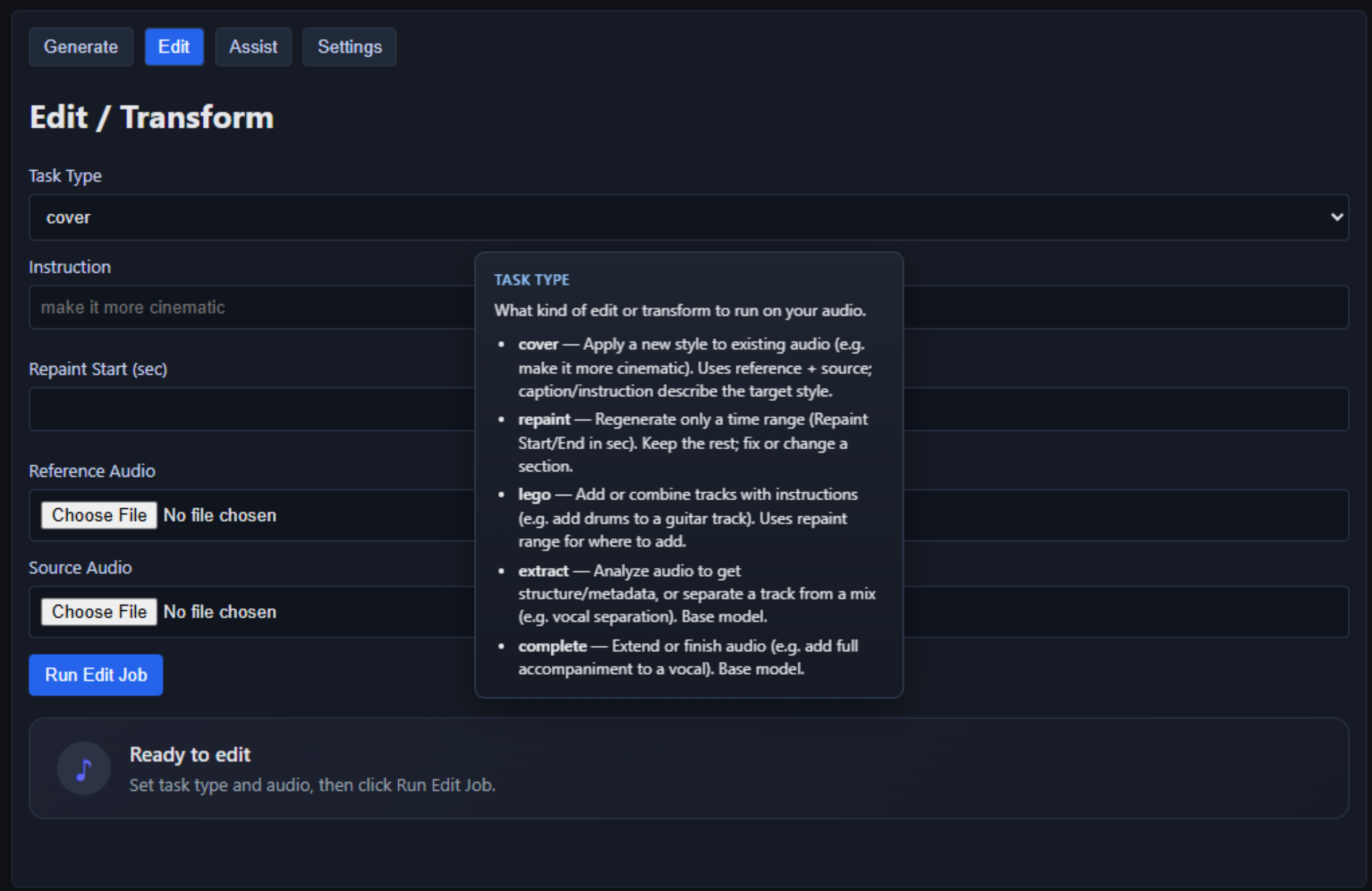
Cover (style transfer), repaint (fix or change a section), lego (add/combine tracks), extract (analyze or separate), and complete (extend or finish).
Project-based workflow
Organize work in projects with tags; all takes and metadata live in your AppData folder and can be opened in Explorer for use in your DAW.
AI-assisted lyrics and structure
Use chat plugins (OpenAI, Gemini, Claude, Grok, ComfyUI) to turn a short “song premise” into AI-generated lyrics and song settings, then apply them directly to the Generate form.
Local-first and configurable
Run the music generation API locally, set API base URL and defaults in Settings, and choose output format (MP3, WAV, FLAC).
Built-in help
Rich tooltips and an in-app cheatsheet explain modes, terms, and workflows.
Generate — Two Ways to Create
Easy mode
Describe your idea in one line (e.g. “a calm forest soundscape,” “upbeat 80s synth pop”). The AI generates the caption, lyrics, BPM, key, and structure for you. Use the query builder to add genre, mood, instruments, vocals, and era/context with one click, or type your own sample query.
Manual mode
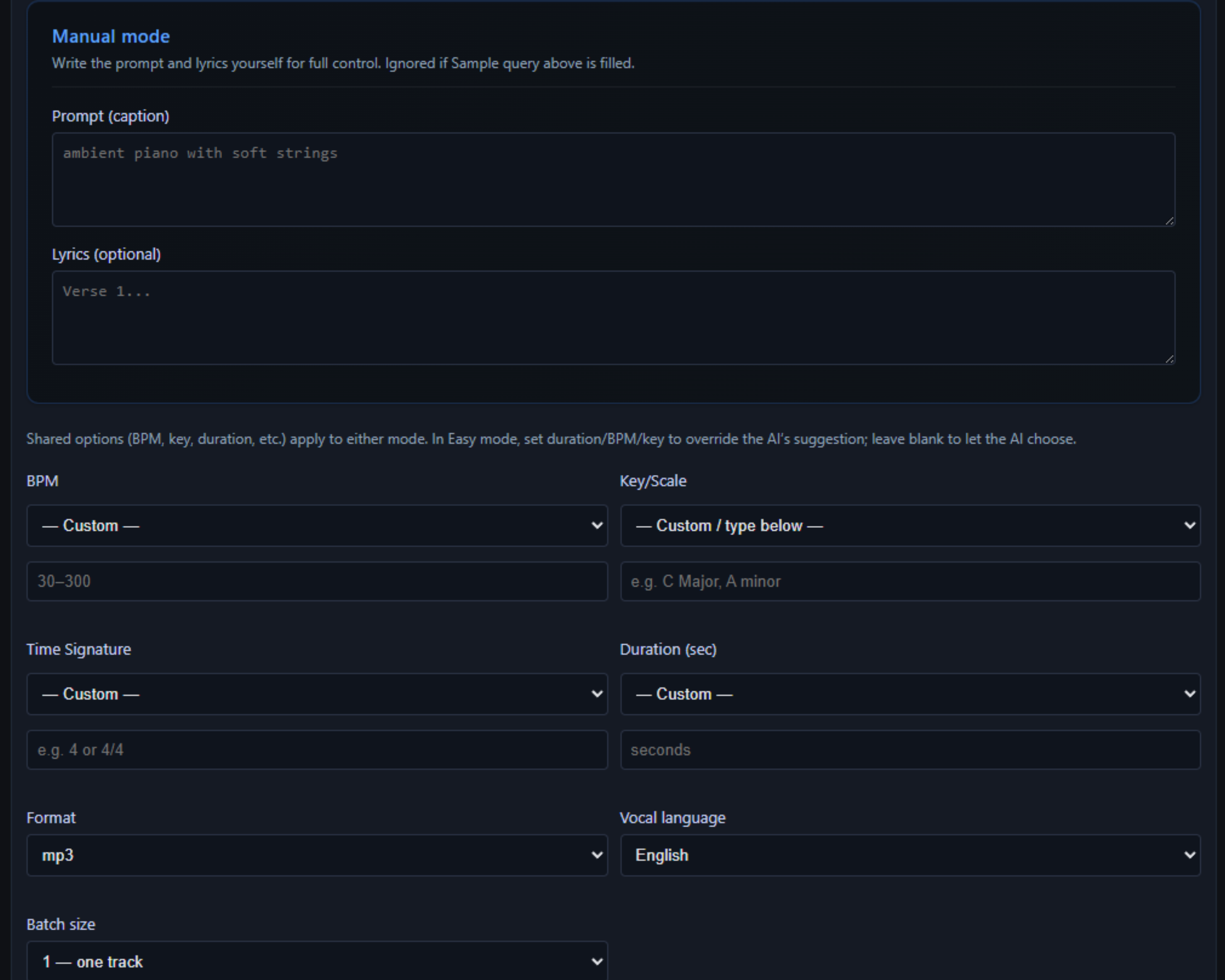
For full control: write the Prompt (caption) — genre, mood, instrumentation — and optional Lyrics. These are ignored when Sample query is filled; only one mode is used per generation.
Shared options — Set BPM (30–300), key/scale, time signature, duration (10–600 seconds), vocal language (English, Auto, or specific languages), batch size (1–8 variations), and output format (MP3, WAV, FLAC). In Easy mode, leave fields blank to let the AI choose, or override as needed.
Edit / Transform
Apply AI to existing audio with five task types:
- Cover — Apply a new style to a source track using an optional reference (e.g. “make it more cinematic”).
- Repaint — Regenerate only a time range (start/end in seconds); keep the rest, fix or change a section.
- Lego — Add or combine elements with instructions (e.g. add drums to a guitar track); uses repaint range for placement.
- Extract — Analyze audio for structure/metadata or separate elements (e.g. vocal separation).
- Complete — Extend or finish audio (e.g. add full accompaniment to a vocal).
Provide instruction text, optional reference and source audio, and repaint range when needed; then run the edit job. Results appear as new takes in the current project.
Assist — Lyrics & Structure
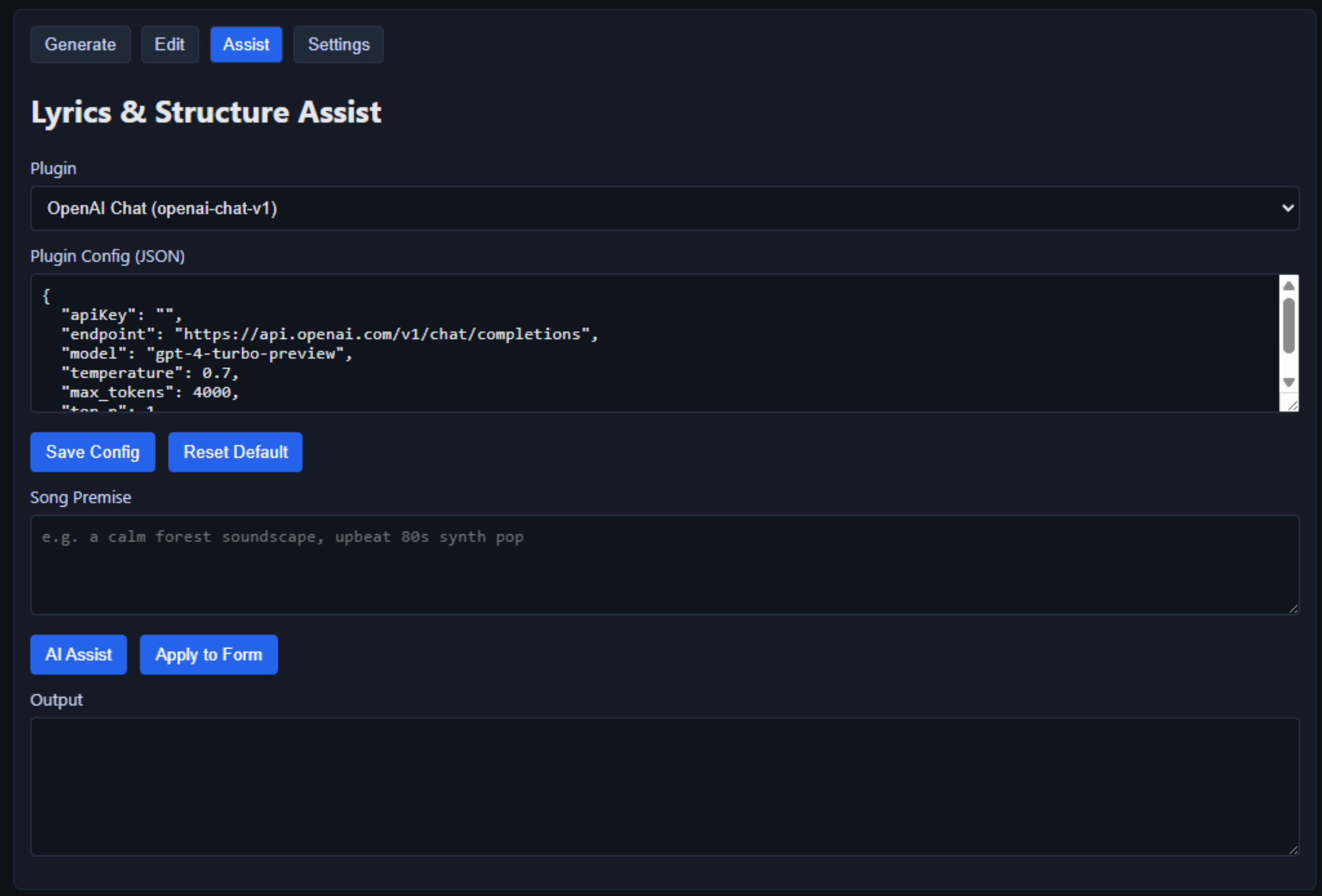
Use chat plugins to turn a short Song Premise into a full song blueprint:
- Select a plugin (e.g. Google Gemini, OpenAI Chat, Anthropic Claude, xAI Grok, ComfyUI Chat).
- Configure with JSON (API keys, model, endpoint); use
{VAR_NAME}for environment variables. - Enter a premise (e.g. “a calm forest soundscape, upbeat 80s synth pop”).
- Click AI Assist; the plugin returns structured JSON (caption, lyrics, BPM, key, time signature, duration) with performance notes for vocals.
- Click Apply to Form to fill the Generate tab and switch to it—then click Create Now! to generate.
Ideal for drafting lyrics and structure before committing to a generation.
Projects & Takes
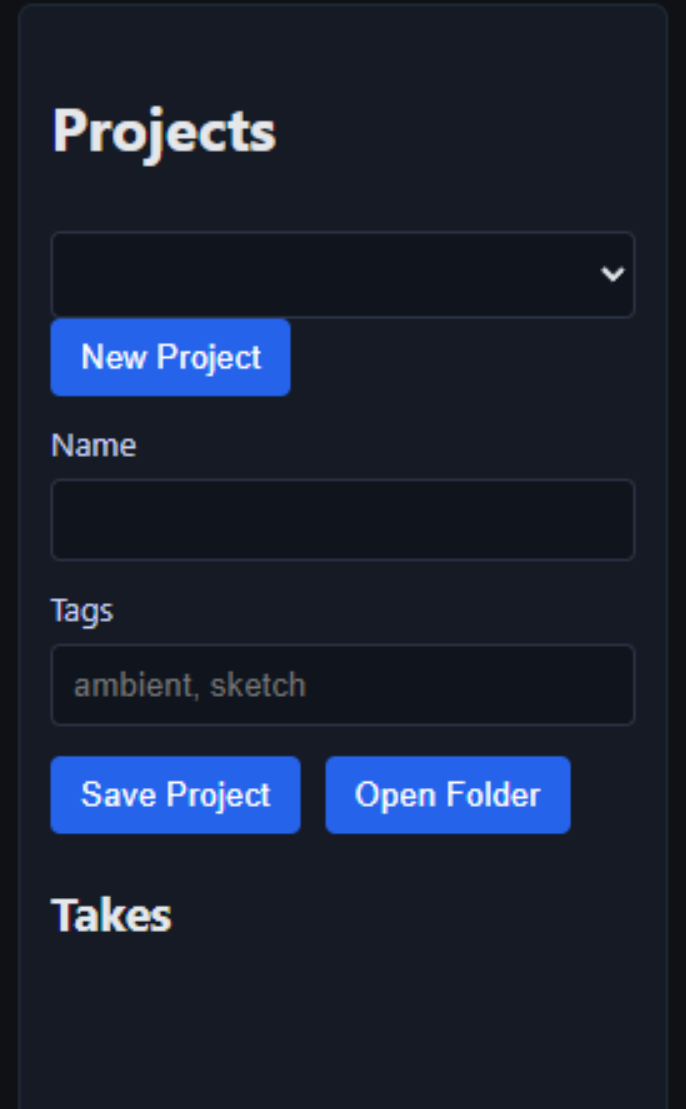
Projects — Create and switch between projects; each has a name and comma-separated tags. Data is stored in your AppData SingMeASongAI folder.
Takes — Each generation or edit produces one or more takes (batch size for generation). Takes list in the left panel; select one to preview.
Preview panel — Play audio, view metadata, and use Rename Take, Open Take Folder, and Delete Take. Open the take folder to drag files into your DAW.
System Requirements
Minimum to run Sing Me A Song AI
- OS: Windows
- GPU: NVIDIA GPU, 24 GB VRAM or more (e.g. RTX 4090).
First-time setup: music generator engine
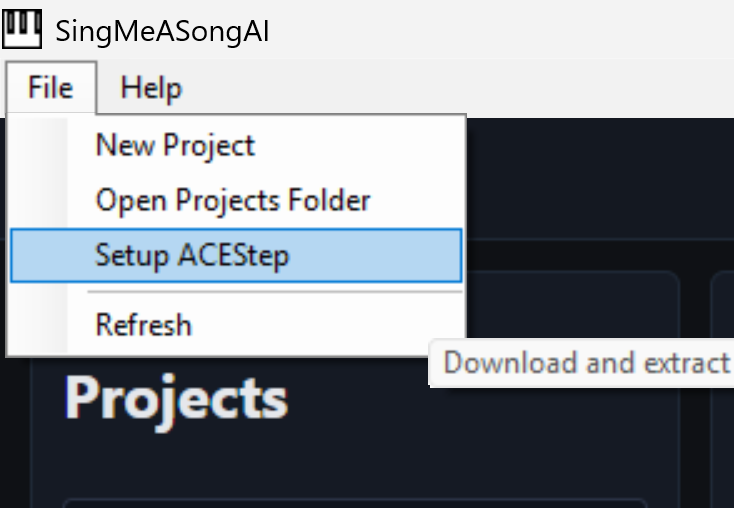
After you purchase and install Sing Me A Song AI, you must set up the music generator engine before you can generate a song. In the app, open the File menu and choose Setup ACEStep. This downloads and extracts the engine; the download can take about an hour depending on your connection. Once it finishes, you’re ready to generate.
For Whom
- Songwriters and producers who want to quickly sketch ideas or get lyric/structure drafts from AI.
- Content creators who need background music, short clips, or style-matched audio.
- Hobbyists and learners exploring AI music generation and editing without a subscription cloud service (run the app locally).
Landing Highlights
- Create full tracks from a single sentence or from detailed prompt + lyrics.
- Edit existing audio: cover, repaint, lego, extract, complete.
- AI Assist: draft lyrics and structure with OpenAI, Gemini, Claude, Grok, or ComfyUI, then apply to Generate.
- Project-based workflow; open take folders in Explorer and use in your DAW.
- Run the music API locally; optional Start Service from the app.
- Rich tooltips and cheatsheet built in.
Frequently Asked Questions
What is Sing Me A Song AI?
A desktop music studio that uses AI to generate and transform music from text descriptions. You can create full tracks, edit existing audio, and use AI chat plugins to draft lyrics and structure.
Do I need a cloud subscription?
No. You can run the music generation API locally on your machine. The app can optionally start the API service for you. AI Assist plugins (e.g. OpenAI, Gemini) use your own API keys if you choose to use them.
What output formats are supported?
MP3, WAV, and FLAC. You set the default in Settings and can override per generation.
Ready to Create?
Get Sing Me A Song AI and start making music on your desktop.
Join the Story Runners for Updates & Support